Friday, 6 July 2012

We can generate cryptographic random number using RNGCryptoServiceProvider class.
This class is available in System.Security.Cryptography namespace.
The System.Random class is a random number generator , the algorithm it uses is deterministic, meaning that you can always calculate what the next number will be based on the previously generated number. This means that numbers generated by the Random class are unsuitable for security is a priority, like generating encryption keys and passwords.

Important : The numbers generated by the RNGCryptoServiceProvider class are not truly random. However, they are sufficiently random to meet the requirements of cryptography and security applications in most government and commercial Applications.


C# Example :
        // Create a byte array to store the random data.
        byte[] objNumber = new byte[32];

        // Generate random number.
        System.Security.Cryptography.RandomNumberGenerator objRNG = System.Security.Cryptography.RandomNumberGenerator.Create();

        // Generate 32 bytes random data.
        objRNG.GetBytes(objNumber);

        // Get byte data into string
        string strRandomNumber = BitConverter.ToString(objNumber);

VB.net Example :
        ' Create a byte array to store the random data.
        Dim objNumber As Byte() = New Byte(31) {}

        ' Generate random number.
        Dim objRNG As System.Security.Cryptography.RandomNumberGenerator = System.Security.Cryptography.RandomNumberGenerator.Create()

        ' Generate 32 bytes random data.
        objRNG.GetBytes(objNumber)

        ' Get byte data into string
        Dim strRandomNumber As String = BitConverter.ToString(objNumber)

Output :

(To view original image , click on image)

Important Note : The computational effort required by RNGCryptoServiceProvider to generate a random number is greater than required by Random class. For everyday routine purposes, the use of RNGCryptoServiceProvider is not suitable. Excessive and unnecessary use of the RNGCryptoServiceProvider class could degrade the application performance.

This is very useful .Net Tips.

Note : Give Us your valuable feedback in comments. Give your suggestions in this article so we can update our articles accordingly that.


Thursday, 5 July 2012

XDocument is Introduce in System.Xml.Linq namespace.
XDocument is more friendlier and easy to use than XMLDocument.
Earlier we are using XMLDocument for read and processing XML File.
Syntax of retrieving element from XML document is different than XMLDocument.
Every .Net Beginners needs to know this. 

Here is example for this.
In this example We load Books.xml file and read data from this file using LINQ to XML and display in grid as well as display count of books.

XML File : (Books.xml)
<?xml version="1.0" encoding="utf-8" ?>
<Books>
   <Book>
    <Title>ASP.NET</Title>
    <ISBN>asp1</ISBN>
    <ReleaseDate>11/11/2010</ReleaseDate>
    <Pages>200</Pages>
    <PublisherId>1</PublisherId>
  </Book>
  <Book>
    <Title>C#.NET</Title>
    <ISBN>c#2</ISBN>
    <ReleaseDate>10/11/2010</ReleaseDate>
    <Pages>500</Pages>
    <PublisherId>1</PublisherId>
  </Book>
  <Book>
    <Title>VB.NET</Title>
    <ISBN>vb3</ISBN>
    <ReleaseDate>5/5/2009</ReleaseDate>
    <Pages>400</Pages>
    <PublisherId>1</PublisherId>
  </Book>
  <Book>
    <Title>SQL Server</Title>
    <ISBN>sql4</ISBN>
    <ReleaseDate>6/9/2010</ReleaseDate>
    <Pages>300</Pages>
    <PublisherId>2</PublisherId>
  </Book>
  <Book>
    <Title>JAVA</Title>
    <ISBN>java5</ISBN>
    <ReleaseDate>8/5/2011</ReleaseDate>
    <Pages>400</Pages>
    <PublisherId>3</PublisherId>
  </Book>
</Books>


ASPX Code :
<form id="form1" runat="server">
    <div>
        <asp:GridView ID="gvBooks" runat="server">
        </asp:GridView>
    </div>
</form>

C# Example :
        XDocument objBooksXML = XDocument.Load(Server.MapPath("books.xml"));
        var objBooks = from book in
                       objBooksXML.Descendants("Book")
                       select new { 
                                    Title = book.Element("Title").Value, 
                                    Pages = book.Element("Pages").Value 
                                  };

        Response.Write(String.Format("Total {0} books.", objBooks.Count()));
        gvBooks.DataSource = objBooks;
        gvBooks.DataBind();

VB.net Example :
        Dim objBooksXML As XDocument = XDocument.Load(Server.MapPath("books.xml"))
        Dim objBooks = From book In objBooksXML...<Book>
                       Select New With {.Title = book.<Title>.Value, .Pages = book.<Pages>.Value}
        Response.Write(String.Format("Total {0} books.", objBooks.Count()))
        gvBooks.DataSource = objBooks
        gvBooks.DataBind()

Output : 


Note : Give Us your valuable feedback in comments. Give your suggestions in this article so we can update our articles accordingly that. 


Wednesday, 4 July 2012

In  .NET Framework 4 New Method introduce in StringBuilder class. Method name is "Clear". This method helps you to clear or remove values or data from String Builder object's.
In earlier version of .Net , If you want to remove values or data from string builder object's for next use , at that time you want to set Length Property to Zero.

Syntax
     objStringBuilder.Length=0

But now in .Net 4.0 framework , you have to call Clear method.

Here are example for this.
In this example we set some values using Append methods to string builder after that we print this value , after that we clear string builder object and again we insert some value in string builder and print this.
You can see that when second time we print string builder object value it does not contains previous value. This previous values remove by Clear Method.

C# Example :
        System.Text.StringBuilder objSB = new System.Text.StringBuilder();
        //Append values
        objSB.Append("This is .Net Blog.");
        objSB.Append("You can get latest C# Tips over here.");

        //Display on screen
        Response.Write(objSB.ToString());
        Response.Write("<br/><br/>");

        //Clear object using Clear method
        objSB.Clear();

        //Append another values
        objSB.Append("This blog is very useful for .Net Beginners");

        Response.Write("After Clear<br/><br/>");
        //Display on screen
        Response.Write(objSB.ToString());


VB.net Example :
        Dim objSB As New System.Text.StringBuilder()
        'Append values
        objSB.Append("This is .Net Blog.")
        objSB.Append("You can get latest C# Tips over here.")

        'Display on screen
        Response.Write(objSB.ToString())
        Response.Write("<br/><br/>")

        'Clear object using Clear method
        objSB.Clear()

        'Append another values
        objSB.Append("This blog is very useful for .Net Beginners")

        Response.Write("After Clear<br/><br/>")
        'Display on screen
        Response.Write(objSB.ToString())

Output :


This type of C# Tips is very useful in day to day programming life.

Note : Give Us your valuable feedback in comments. Give your suggestions in this article so we can update our articles accordingly that. 


Tuesday, 3 July 2012

XmlReader provides fast, forward-only, read-only access to XML documents. These documents may contain various elements in multiple namespaces. XmlTextReader and XmlNodeReader classes derive from XMLReader and work as an abstract class for these classes.
With help of XmlReader Class we can read xml file and also extract data from xml file.
XmlReader class available in System.Xml namespace.
Every .Net Beginners needs to know this.

Here is example of this.
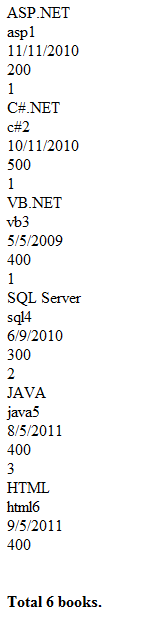
In this example we have "books.xml" file. This file has many books with element <book>. We count books in books.xml and also display xml file's data without xml elements.
In this example we are also taking object of "XmlReaderSettings" Class. With the help of this class we can Ignore Whitespace and Comments using IgnoreWhitespace and IgnoreComments properties to parse XML File.

XML File : (Books.xml)
<?xml version="1.0" encoding="utf-8" ?>
<Books>
   <Book>
    <Title>ASP.NET</Title>
    <ISBN>asp1</ISBN>
    <ReleaseDate>11/11/2010</ReleaseDate>
    <Pages>200</Pages>
    <PublisherId>1</PublisherId>
  </Book>
  <Book>
    <Title>C#.NET</Title>
    <ISBN>c#2</ISBN>
    <ReleaseDate>10/11/2010</ReleaseDate>
    <Pages>500</Pages>
    <PublisherId>1</PublisherId>
  </Book>
  <Book>
    <Title>VB.NET</Title>
    <ISBN>vb3</ISBN>
    <ReleaseDate>5/5/2009</ReleaseDate>
    <Pages>400</Pages>
    <PublisherId>1</PublisherId>
  </Book>
  <Book>
    <Title>SQL Server</Title>
    <ISBN>sql4</ISBN>
    <ReleaseDate>6/9/2010</ReleaseDate>
    <Pages>300</Pages>
    <PublisherId>2</PublisherId>
  </Book>
  <Book>
    <Title>JAVA</Title>
    <ISBN>java5</ISBN>
    <ReleaseDate>8/5/2011</ReleaseDate>
    <Pages>400</Pages>
    <PublisherId>3</PublisherId>
  </Book>
  <Book>
    <Title>HTML</Title>
    <ISBN>html6</ISBN>
    <ReleaseDate>9/5/2011</ReleaseDate>
    <Pages>400</Pages>
    
  </Book>
</Books>

C# Example :
        int intCount = 0;
        XmlReaderSettings objSettings = new XmlReaderSettings();
        objSettings.IgnoreWhitespace = true;
        objSettings.IgnoreComments = true;
        string booksFile = Server.MapPath("books.xml");
        using (XmlReader objReader = XmlReader.Create(booksFile, objSettings))
        {
            while (objReader.Read())
            {
                if (objReader.NodeType == XmlNodeType.Element && "Book" == objReader.LocalName)
                {
                     intCount++;
                }
                if (objReader.NodeType ==XmlNodeType.Text )
                {
                    Response.Write("<BR />" + objReader.Value);
                }
            }
        }
        Response.Write(String.Format("<BR /><BR /><BR /><b> Total {0} books.</b>", intCount));

VB.net Example :
        Dim intCount As Integer = 0
        Dim objSettings As New XmlReaderSettings()
        objSettings.IgnoreWhitespace = True
        objSettings.IgnoreComments = True
        Dim booksFile As String = Server.MapPath("books.xml")
        Using objReader As XmlReader = XmlReader.Create(booksFile, objSettings)
            While objReader.Read()
                If objReader.NodeType = XmlNodeType.Element AndAlso "Book" = objReader.LocalName Then
                    intCount += 1
                End If
                If objReader.NodeType = XmlNodeType.Text Then
                    Response.Write("<BR />" + objReader.Value)
                End If
            End While
        End Using
        Response.Write([String].Format("<BR /><BR /><BR /><b> Total {0} books.</b>", intCount))

Output :


Note : Give Us your valuable feedback in comments. Give your suggestions in this article so we can update our articles accordingly that.


Monday, 2 July 2012

This is very managed and safe way to use parameter to execute SQL query and Stored Procedure. By doing this you can avoid sql injection type of problems. We need to set the argument of sql query or  stored procedure to use parameters in a SQL command object.You need to create a parameter object for this.
All parameter objects implement the System.Data.IDataParameter interface.
After that you can configure the parameter object’s values, data types,  and directions, and add them to the command object’s parameter collection using the IDbCommand.Parameters.Add method.

 The ODBC, OLE DB, and SQL Server CE data providers support positional parameters, the location of each argument is identified by a question mark "?".
For example, the below query identifies two locations to be substituted with parameter values:

UPDATE product_master SET product_name= ? WHERE product_id = ?

The SQL Server and Oracle data providers support named parameters, which allow to identify
each parameter location using a name preceded by the at symbol "@".
For example :
UPDATE product_master SET product_name= @product_name=  WHERE product_id = @product_id

To specify the parameter values into a command, we must create parameter objects of the specific type and add them to the command object’s parameter collection accessible through the Parameters property.
Here is example for this.
In this example we take two functions , first function is for to execute sql query and second function is for execute stored procedure.

C# Examples :
    public void ParameterizedCommand(SqlConnection objCon, int product_id, string product_name)
    {
        // Create a new command.
        using (SqlCommand com = objCon.CreateCommand())
        {
            com.CommandType = CommandType.Text;
            com.CommandText = "UPDATE product_master SET product_name = @product_name WHERE product_id = @product_id";
            // Create a SqlParameter object.
            SqlParameter objParam = com.CreateParameter();
            objParam.ParameterName = "@product_name";
            objParam.SqlDbType = SqlDbType.VarChar;
            objParam.Value = product_name;
            com.Parameters.Add(objParam);
            
            com.Parameters.Add("@product_id", SqlDbType.Int).Value = product_id;
            //Execute command
            int result = com.ExecuteNonQuery();
            if (result == 1)
            {
                Response.Write("Product title updated.");
            }
            else
            {
                Response.Write("Product title not updated.");
            }
        }
    }
    public void ParameterizedStoredProcedure(SqlConnection objCon, string product_name)
    {
        // Create and configure a new command.
        using (SqlCommand com = objCon.CreateCommand())
        {
            com.CommandType = CommandType.StoredProcedure;
            com.CommandText = "sp_product_details_by_product_name";
            // Create a SqlParameter object .
            com.Parameters.Add("@product_id", SqlDbType.VarChar).Value =product_name;
            
            // Execute command.
            using (IDataReader objReader = com.ExecuteReader())
            {
                Response.Write( string.Format( "Product Name ({0}).", product_name));
                while (objReader.Read())
                {
                    // Display the product details.
                    Response.Write( string.Format( " {0} = {1}", objReader["product_id"], objReader["product_name"]));
                }
            }
        }
    }
    protected void Page_Load(object sender, EventArgs e)
    {

        // Create a new SqlConnection object.
        using (SqlConnection objCon = new SqlConnection())
        {
            // Configure the SqlConnection object's connection string.
            objCon.ConnectionString = @"Data Source=.\SQLEXPRESS;" + // SQL Server instance , You can also set remote database
                                         "Initial Catalog=TempDatabase;" + // the sample TempDatabase DB
                                         "User ID=sa;Password=ibmx206;";  //Set Credential

            // Open the database connection and execute the example
            // commands through the connection.
            objCon.Open();
            ParameterizedCommand(objCon, 8,"KeyBoard");
            
            ParameterizedStoredProcedure(objCon, "CPU");
            
        };
    }

VB.net Examples :
    Public Sub ParameterizedCommand(ByVal objCon As SqlConnection, ByVal product_id As Integer, ByVal product_name As String)
        ' Create a new command.
        Using com As SqlCommand = objCon.CreateCommand()
            com.CommandType = CommandType.Text
            com.CommandText = "UPDATE product_master SET product_name = @product_name WHERE product_id = @product_id"
            ' Create a SqlParameter object.
            Dim objParam As SqlParameter = com.CreateParameter()
            objParam.ParameterName = "@product_name"
            objParam.SqlDbType = SqlDbType.VarChar
            objParam.Value = product_name
            com.Parameters.Add(objParam)

            com.Parameters.Add("@product_id", SqlDbType.Int).Value = product_id
            'Execute command
            Dim result As Integer = com.ExecuteNonQuery()
            If result = 1 Then
                Response.Write("Product title updated.")
            Else
                Response.Write("Product title not updated.")
            End If
        End Using
    End Sub
    Public Sub ParameterizedStoredProcedure(ByVal objCon As SqlConnection, ByVal product_name As String)
        ' Create and configure a new command.
        Using com As SqlCommand = objCon.CreateCommand()
            com.CommandType = CommandType.StoredProcedure
            com.CommandText = "sp_product_details_by_product_name"
            ' Create a SqlParameter object .
            com.Parameters.Add("@product_id", SqlDbType.VarChar).Value = product_name

            ' Execute command.
            Using objReader As IDataReader = com.ExecuteReader()
                Response.Write(String.Format("Product Name ({0}).", product_name))
                While objReader.Read()
                    ' Display the product details.
                    Response.Write(String.Format(" {0} = {1}", objReader("product_id"), objReader("product_name")))
                End While
            End Using
        End Using
    End Sub
    Protected Sub Page_Load(ByVal sender As Object, ByVal e As System.EventArgs) Handles Me.Load
        ' Create a new SqlConnection object.
        Using objCon As New SqlConnection()
            ' Configure the SqlConnection object's connection string.
            objCon.ConnectionString = "Data Source=.\SQLEXPRESS;" & _
                                      "Initial Catalog=TempDatabase;" & _
                                      "User ID=sa;Password=sa;"
            ' Open the database connection and execute the example
            ' commands through the connection.
            objCon.Open()
            ParameterizedCommand(objCon, 8, "KeyBoard")


            ParameterizedStoredProcedure(objCon, "CPU")
        End Using

    End Sub

 You can also directly use SQLParameter class object with SQLCommand and SQLConnection objects.


In this article we are using both Text and StoredProcedure as command type. 

Note : Give Us your valuable feedback in comments. Give your suggestions in articles so we can update our articles accordingly that.


Friday, 29 June 2012

You can determine that the current operating system is 64 bit OS or not.
In .NET Framework 4 there is one function Is64BitOperatingSystem  is available to check that  current operating system is a 64-bit operating system.
This function available in Environment class of System namespace.
This function return true if OS is 64 bit else return false.

Here is example :
This example is in both C# .Net Programming and VB.Net Programming.

C# Example :
        if (System.Environment.Is64BitOperatingSystem == true)
        {
            Response.Write("This is 64 Bit Operating System.");
        }
        else
        {
            Response.Write("This is not 64 Bit Operating System.");
        }

VB.net Example :
        If System.Environment.Is64BitOperatingSystem = True Then
            Response.Write("This is 64 Bit Operating System.")
        Else
            Response.Write("This is not 64 Bit Operating System.")
        End If

This type of C# Tips is very useful in day to day programming life.

Note : Give Us your valuable feedback in comments. Give your suggestions in this article so we can update our articles accordingly that.


Thursday, 28 June 2012

In .NET Framework 4 there is enhancement System.Guid structure, These includes new TryParse and TryParseExact methods. Using these methods you can validate GUID string.
GUID means a globally unique identifier (GUID). GUID is a structure and it's namespace is System.Guid. A GUID is a 128-bit integer this can be used in all computers and networks wherever a unique identifier is required. This identifier has a very less probability of being duplicated.


Here is example for this.
In this example we create new guid object and also take one string variable which has invalid guid. After that we use TryParse method to validate that both variable has valid guid format or not. By running example you can see that string variable has not valid guid format and it gives message of "InValid guid". If string variable has valid guid than this will return true in TryParse method.


C# Example :
        //Generate New GUID
        Guid objGuid = Guid.NewGuid();
        //Take invalid guid format
        string strGUID = "aaa-a-a-a-a";

        Guid newGuid;

        if (Guid.TryParse(objGuid.ToString(), out newGuid) == true)
        {
            Response.Write(string.Format("<br/>{0} is Valid GUID.", objGuid.ToString()));
        }
        else
        {
            Response.Write(string.Format("<br/>{0} is InValid GUID.", objGuid.ToString()));
        }

        
        Guid newTmpGuid;

        if (Guid.TryParse(strGUID, out newTmpGuid) == true)
        {
            Response.Write(string.Format("<br/>{0} is Valid GUID.", strGUID));
        }
        else
        {
            Response.Write(string.Format("<br/>{0} is InValid GUID.", strGUID));
        }

VB.net Example :
        'Generate New GUID
        Dim objGuid As Guid = Guid.NewGuid()
        'Take invalid guid format
        Dim strGUID As String = "aaa-a-a-a-a"

        Dim newGuid As Guid

        If Guid.TryParse(objGuid.ToString(), newGuid) = True Then
            Response.Write(String.Format("<br/>{0} is Valid GUID.", objGuid.ToString()))
        Else
            Response.Write(String.Format("<br/>{0} is InValid GUID.", objGuid.ToString()))
        End If


        Dim newTmpGuid As Guid

        If Guid.TryParse(strGUID, newTmpGuid) = True Then
            Response.Write(String.Format("<br/>{0} is Valid GUID.", strGUID))
        Else
            Response.Write(String.Format("<br/>{0} is InValid GUID.", strGUID))
        End If

Output :

This type of C# Tips is very useful in day to day programming life.

Note : Give Us your valuable feedback in comments. Give your suggestions in this article so we can update our articles accordingly that.