Showing posts with label System.Environment. Show all posts

Tuesday, 7 August 2012

You can get processors count on your machine.
We are using "ProcessorCount" property of "System.Environment" class.

Here is example for this.
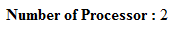
In this example we display Processor count on screen

C# Examples :
Response.Write("<b>Number of Processor :</b> " + Environment.ProcessorCount);

VB.net Examples :
Response.Write("<b>Number of Processor :</b> " & Environment.ProcessorCount)

Output :


This type of C# Tips is very useful in day to day programming life.

Note : Give Us your valuable feedback in comments. Give your suggestions in this article so we can update our articles accordingly that.


Wednesday, 1 August 2012

You can get Operation System (OS) name and major version and minor version details,service pack and build details of server using  "System.Environment" class.
We can use OSVersion property of Environment Class which will return "OperatingSystem" class.

Here is example for this.
In this example we display server name ,it's version details , service pack and build details.

C# Examples :
        Response.Write("<b>OS Platform :</b> " + Environment.OSVersion.Platform);
        Response.Write("<br/><br/>");
        Response.Write("<b>OS Major Version :</b> " + Environment.OSVersion.Version.Major);
        Response.Write("<br/><br/>");
        Response.Write("<b>OS Minor Version :</b> " + Environment.OSVersion.Version.Minor);
        Response.Write("<br/><br/>");
        Response.Write("<b>OS Build number :</b> " + Environment.OSVersion.Version.Build);
        Response.Write("<br/><br/>");
        Response.Write("<b>OS Service Pack :</b> " + Environment.OSVersion.ServicePack);
        Response.Write("<br/><br/>");
        Response.Write("<b>OS Version String :</b> " + Environment.OSVersion.VersionString);

VB.net Example :
        Response.Write("<b>OS Platform :</b> " & Environment.OSVersion.Platform.ToString())
        Response.Write("<br/><br/>")
        Response.Write("<b>OS Major Version :</b> " & Environment.OSVersion.Version.Major)
        Response.Write("<br/><br/>")
        Response.Write("<b>OS Minor Version :</b> " & Environment.OSVersion.Version.Minor)
        Response.Write("<br/><br/>")
        Response.Write("<b>OS Build number :</b> " & Environment.OSVersion.Version.Build)
        Response.Write("<br/><br/>")
        Response.Write("<b>OS Service Pack :</b> " & Environment.OSVersion.ServicePack)
        Response.Write("<br/><br/>")
        Response.Write("<b>OS Version String :</b> " & Environment.OSVersion.VersionString)
        Response.Write("<br/><br/>")

Output :

This type of C# Tips is very useful in day to day programming life.

Note : Give Us your valuable feedback in comments. Give your suggestions in this article so we can update our articles accordingly that.


Tuesday, 17 July 2012

You can get System Folder path using code using "System.Environment" Class.
We are using  Static / Shared "GetFolderPath" method of Environment Class.

Here is examples of this.
In this example we get system folder path and display on screen.

C# Examples :
 string strSystemPath = Environment.GetFolderPath(Environment.SpecialFolder.System);
 Response.Write("<b>System Folder Path :</b> " + strSystemPath);

VB.net Example :
 Dim strSystemPath As String = Environment.GetFolderPath(Environment.SpecialFolder.System)
 Response.Write("System Folder Path:" + strSystemPath)

Output :
This type of C# Tips is very useful in day to day programming life.

Note : Give Us your valuable feedback in comments. Give your suggestions in this article so we can update our articles accordingly that.


Tuesday, 10 July 2012

You can check that your current application uses in 64 bit process or not.
In  .NET Framework 4 there is one function Is64BitProcessis available to check that current application uses in 64 bit process or not.
This function available in Environment class of System namespace.
This function return true if process is 64 bit else return false.

Here is example :
This example is in both C# .Net Programming and VB.Net Programming.

C# Example :
        if (System.Environment.Is64BitProcess == true)
        {
            Response.Write("This is 64 Bit Process.");
        }
        else
        {
            Response.Write("This is not 64 Bit Process.");
        }

VB.net Example :
        If System.Environment.Is64BitProcess = True Then
            Response.Write("This is 64 Bit Process.")
        Else
            Response.Write("This is not 64 Bit Process.")
        End If

This type of C# Tips is very useful in day to day programming life.

Note : Give Us your valuable feedback in comments. Give your suggestions in this article so we can update our articles accordingly that.

Friday, 29 June 2012

You can determine that the current operating system is 64 bit OS or not.
In .NET Framework 4 there is one function Is64BitOperatingSystem  is available to check that  current operating system is a 64-bit operating system.
This function available in Environment class of System namespace.
This function return true if OS is 64 bit else return false.

Here is example :
This example is in both C# .Net Programming and VB.Net Programming.

C# Example :
        if (System.Environment.Is64BitOperatingSystem == true)
        {
            Response.Write("This is 64 Bit Operating System.");
        }
        else
        {
            Response.Write("This is not 64 Bit Operating System.");
        }

VB.net Example :
        If System.Environment.Is64BitOperatingSystem = True Then
            Response.Write("This is 64 Bit Operating System.")
        Else
            Response.Write("This is not 64 Bit Operating System.")
        End If

This type of C# Tips is very useful in day to day programming life.

Note : Give Us your valuable feedback in comments. Give your suggestions in this article so we can update our articles accordingly that.