Showing posts with label XML. Show all posts

Wednesday, 26 March 2014

You can fill DataTable from another DataTable using LINQ after doing LINQ operation.

This would be useful in condition like you need to perform some operation on DataTable using LINQ and get back result into another 'DataTable'. Means, you can filter and projection on one DataTable and get result in another DataTable.

We can achieve this by using 'CopyToDataTable' method of LINQ query result variable.

Here is example for this.
In this example we are taking one DataTable which contains product information like ID, name, etc. Now we get only those products which ID is greater than one by LINQ operation on this table and get result in another table using 'CopyToDataTable' method of LINQ query result variable.

Tuesday, 4 March 2014

You can create XML file from another file with selected elements from source XML file using LINQ. In this, we query the source XML file using LINQ and write or create new XML file.

Here is example for this. 
In this example we take one "Book.xml" file. In this file we have element like Title, Pages, ISBN and Auther. Now we are querying the "Book.xml" file to get only Title and ISBN of book and create another XML with data that contains only Title and ISBN element.

Wednesday, 12 February 2014

You can fill List of object from DataTable using LINQ. There are many situations where you need to get data from DB into data table and after that from data table to proper class object. We can do this easily with LINQ.

Here is example for this.
In this example we take one DataTable object which contains two columns 'product_id' and 'product_name'. This DataTable has many rows. Now we want to convert DataTable object into list of class object. We have one Class 'clsProduct' which has two property 'product_id' and 'product_name'. Now we transform DataTable object data in to list of clsProduct class object using LINQ.

Thursday, 16 January 2014

You can attach events like 'onChanging' and 'onChanged' events on XML document object. These events raise when you 'ADD' or 'REMOVE' XML element from XML Document object.

First 'onChanging' event raise after that 'onChanged' event raise. In this event we get 'XObjectChangeEventArgs' class object. This object give us property like 'ObjectChange'. In this property we can know that which method is performed.

When we call 'Add' method we get 'Add' value in 'ObjectChange' property and when we call 'Remove' method we get 'Remove' value in 'ObjectChange' property.

Here is example on this.

Friday, 20 December 2013

You can validate the data of XML file and identify XML elements which are failed to validate. We can easily achieve this using LINQ.

Here is example for this.
In this example we take one 'customer.xml' file. In this file we have 'name' and 'phone' element. We need to validate phone number with REGEX and display it's validate result either it is true or false.

Wednesday, 11 December 2013

Using LINQ you can check that attribute exist in element or not. There is property called "HasAttributes" of XElement class to check existence of attribute.

Here is example for this.

In this example we take one 'customers.xml' file which contains customers information like name, id, etc. Now we check that does "customer" element has 'id' attribute or not. In XML there is one customer 'David' which does not have 'id' attribute. Now we iterate each 'customer' element and display that it element has attribute or not.

Wednesday, 20 November 2013


 XML file contains various types of data like string, integer, date, etc. Now if we want to get data from XML file order by some attribute which contains dates at that time we need to do some special things if we are not doing that at that time data is not sorted date wise it will treat as normal string sorting. We can do date wise sorting. 

Here are examples for this.
In this example we are taking on 'Books.xml' file which contains books details in this XML file for each book element we are one "ReleaseDate" element which contains date value. Now we take that XML file in XMLDocument object and sort on "ReleaseDate" attribute by converting that string date into date datatype.

Wednesday, 16 October 2013

You can query objects using SelectMany LINQ method and get result according to your given criteria. You can also query more than one criteria.

Here is example for this.

In this example we take "books.xml". Now we query on element "author" whose sub element is 'firstname' and 'lastname' and we only want list of authors whose name is either 'Pratik' or 'David'.

Thursday, 26 September 2013

We can get or retrieve full path of the given XML Node or Element. Means from root element to the given XML Node. We can achieve this  LINQ's extensions methods. We are using 'Descendants', 'AncestorsAndSelf' and 'Reverse' methods.

  • Descendants : Returns filtered collections of the given elements from document or element. For more details Click Here.
  • AncestorsAndSelf : Returns collection of elements that contain this element. For more details Click Here.

Here is C#.Net example and VB.Net example.

Wednesday, 11 September 2013

You can directly get element of particular position or query that element using LINQ's 'Descendants' and 'ElementAt' method.

  • 'Descendants' is a method of XDocument class which accept name of element as string.
  • 'ElementAt' is a method of 'XElement' class which accept integer value of index.

Means you can query the 2nd book element in the XML document or file. You can also call that as positional predicate.

Here is example for this.
In this example we took one XML file 'BooksList.xml'. Now we use 'Descendants' method of 'XDocument' and pass 'book' element and after that, we use 'ElementAt' method and pass '1' so that we can get 2nd element of 'book' from that XML file.


C#. Net Example :
XDocument objDoc = XDocument.Load(Server.MapPath("BooksList.xml"));
XElement objElement = objDoc.Descendants("book").ElementAt(1);

Response.Write("<b>Title Element Value : </b>" + objElement.Element("Title").Value);
Response.Write("<br/>");
Response.Write("<b>ReleaseDate Element Value : </b>" + objElement.Element("ReleaseDate").Value);
Response.Write("<br/>");
Response.Write("<b>Pages Element Value : </b>" + objElement.Element("Pages").Value);

VB.Net Examples :
Dim objDoc As XDocument = XDocument.Load(Server.MapPath("BooksList.xml"))
Dim objElement As XElement = objDoc.Descendants("book").ElementAt(1)

Response.Write("<b>Title Element Value : </b>" + objElement.Element("Title").Value)
Response.Write("<br/>")
Response.Write("<b>ReleaseDate Element Value : </b>" + objElement.Element("ReleaseDate").Value)
Response.Write("<br/>")
Response.Write("<b>Pages Element Value : </b>" + objElement.Element("Pages").Value)

BooksList.xml
<?xml version="1.0" encoding="utf-16"?>
<books>
  <book ISBN="asp1">
    <Title>ASP.NET</Title>
    <ReleaseDate>11/11/2010</ReleaseDate>
    <Pages>200</Pages>
  </book>
  <book ISBN="c#2">
    <Title>C#.NET</Title>
    <ReleaseDate>10/11/2010</ReleaseDate>
    <Pages>500</Pages>
  </book>
</books>


Output :
LINQ positional predicate


Below are the books that you would like :

Monday, 26 August 2013

You can get Parent element from child element using LINQ method. Some times there are situations when you traverse XML file and you reach at child node and you want to get details of Parent node at that time you can use "Parent" method which will give you parent node as XElement object.

Here is example for this.
In this example we took one "BooksList.xml" file. Now we traverse to child node "Title" and after that, we get its parent node using "Parent" property.

Monday, 29 July 2013

There are situations where some time we want to get root element of XML file or document. We can get this root element and root element name very easily. We are using "Root" property of "XDocument" class.

Here is example for this.
In this example we take on "BooksList.xml" file and we display its root element name.

C#. Net Example :
        XElement objRootElement = XDocument.Load(Server.MapPath("BooksList.xml")).Root;
        Response.Write("<b>Name of root element is : </b>" + objRootElement.Name);

VB.Net Examples :
        Dim objRootElement As XElement = XDocument.Load(Server.MapPath("BooksList.xml")).Root
        Response.Write("<b>Name of root element is : </b>" & objRootElement.Name.ToString())

Output :


Below are the books that you would like :

Monday, 15 July 2013

We can get specific attributes values from XML file or document or object using LINQ. We are using "Elements" and "Attributes" methods of XML document object to get attributes values.

Here is example for this.
In this example we take one "BooksList.xml" file. This file contains books related details and each book has ISBN number which appears as attribute in "<book>" node. We retrieve this attribute using LINQ and display on screen.

Tuesday, 18 June 2013

We can Create or Generate XML file or document programmatically using XDocument, XElement and XAttribute class. We can use infinite level of XML element. We can also create "web.config" file programmatically.

Here is example for this.
In this example we create sample "web.config" file using XElement and XAttribute class and display that generated XML in textbox. We are using ".ToString" method of XDocument object to get XML string.

ASPX Code :
    <asp:TextBox runat="server" ID="txtXML" TextMode="MultiLine" Rows="20" Columns="110"></asp:TextBox>


C#. Net Example :
        XDocument myDocument = new XDocument(
                                  new XElement("configuration",
                                    new XElement("system.web",
                                      new XElement("membership",
                                        new XElement("providers",
                                          new XElement("add",
                                            new XAttribute("name","WebAdminMembershipProvider"),
                                            new XAttribute("type","System.Web.Administration.WebAdminMembershipProvider")))),
                                      new XElement("httpModules",
                                        new XElement("add",
                                          new XAttribute("name","WebAdminModule"),
                                          new XAttribute("type","System.Web.Administration.WebAdminModule"))),
                                      new XElement("authentication",
                                        new XAttribute("mode", "Windows")),
                                      new XElement("authorization",
                                        new XElement("deny",
                                          new XAttribute("users", "?"))),
                                      new XElement("identity",
                                        new XAttribute("impersonate", "true")),
                                      new XElement("trust",
                                        new XAttribute("level", "full")),
                                      new XElement("pages",
                                        new XAttribute("validationRequest", "true")))));

        txtXML.Text = myDocument.ToString();

VB.Net Examples :
        Dim myDocument As New XDocument(
            New XElement("configuration",
                                    New XElement("system.web",
                                        New XElement("membership",
                                        New XElement("providers",
                                            New XElement("add",
                                            New XAttribute("name", "WebAdminMembershipProvider"),
                                            New XAttribute("type", "System.Web.Administration.WebAdminMembershipProvider")))),
                                        New XElement("httpModules",
                                        New XElement("add",
                                            New XAttribute("name", "WebAdminModule"),
                                            New XAttribute("type", "System.Web.Administration.WebAdminModule"))),
                                        New XElement("authentication",
                                        New XAttribute("mode", "Windows")),
                                        New XElement("authorization",
                                        New XElement("deny",
                                            New XAttribute("users", "?"))),
                                        New XElement("identity",
                                        New XAttribute("impersonate", "true")),
                                        New XElement("trust",
                                        New XAttribute("level", "full")),
                                        New XElement("pages",
                                        New XAttribute("validationRequest", "true")))))

        txtXML.Text = myDocument.ToString()

Output :
Create or Generate XML file programmatically using XElement and XAttribute class
(To view original image , click on image)

Tuesday, 11 June 2013

XML declaration of a XML document or file is very important. We can add XML declaration and create XML element programmatically .
We are using "XDocument" and "XDeclaration" class to add declaration.

Here is example for this.
In this example we create XML document with specified XML declaration and save it into the StringWriter object. You can see in the debug time screenshot.

C#. Net Example :
        XDocument doc = new XDocument(new XDeclaration("1.0", "UTF-16", "Yes"),new XElement("Products"));
        StringWriter sw = new StringWriter();
        doc.Save(sw);
        Response.Write(sw.ToString());

VB.Net Examples :
        Dim doc As New XDocument(New XDeclaration("1.0", "UTF-16", "Yes"), New XElement("Products"))
        Dim sw As New StringWriter()
        doc.Save(sw)
        Response.Write(sw.ToString())

Output :
Add XML declaration programmatically
(To view original image , click on image)


Wednesday, 5 June 2013

We can construct or create XML or XElement from string. There are situations in applications where we receive some XML data in form of string and we need to convert that string back into the XML for our need and easy to handle that XML document for querying and other manipulation.
We are using "XElement.Parse" method to get XElement.

Here is example for this.
In this example we take one string xml and then we converted that in to XElement using "Parse" method of "System.Xml.Linq.XElement" Class.
You can see in output image that after parse that object we watch this object in "Text Visualizer" window and able to see that that string is converted in to XElement.

C#. Net Example :
        string strXML = "<Products>" +
                        "<Product id='1' price='5000'>CPU</Product>" +
                        "<Product id='2' price='500'>Monitor</Product>" +
                        "<Product id='2' price='100'>Mouse</Product>" +
                        "</Products>";
        System.Xml.Linq.XElement objXElement = System.Xml.Linq.XElement.Parse(strXML);
        Response.Write(objXElement);

VB.Net Examples :
        Dim strXML As String = "<Products>" & _
                                "<Product id='1' price='5000'>CPU</Product>" & _
                                "<Product id='2' price='500'>Monitor</Product>" & _
                                "<Product id='2' price='100'>Mouse</Product>" & "</Products>"
        Dim objXElement As System.Xml.Linq.XElement = System.Xml.Linq.XElement.Parse(strXML)
        Response.Write(objXElement)

Output : 
Create XElement or XML from string
(To view original image , click on image)

Monday, 24 September 2012

Click Here to Download ProcessRSSorATOMFeed.zip

You can process the content of an Atom 1.0 or RSS 2.0 feed to extract or get details of the feed. .Net framework provide classes to parse the feed data.
We are using System.ServiceModel.Syndication.SyndicationFeedFormatter and System.ServiceModel.Syndication.SyndicationFeed classes.

The SyndicationFeedItem  and SyndicationFeed classes gives a generic abstraction of Atom 1.0 and RSS 2.0 feeds and feed items, and provide a common interface to simplify the processing of both feed types. The Rss20FeedFormatter class allows to create a SyndicationFeed object from an RSS 2.0 feed, and the Atom10FeedFormatter class provides support for Atom 1.0 feeds. Both classes are available in the System.ServiceModel.Syndication namespace.
We are using "ReadFrom" method and "Feed" property of these classes.

Here is example for this.
In this example we read the feed and display it's details.

C# Examples :
        Uri objFeedUrl = null;
        string strUrl = "http://jayeshsorathia.blogspot.com/rss.xml";
        if (strUrl.Length == 0 || String.IsNullOrEmpty(strUrl) || !Uri.TryCreate(strUrl, UriKind.RelativeOrAbsolute, out objFeedUrl))
        {
            Response.Write("Invalid feed.");
            return;
        }

        // Create the web request.
        WebRequest objReqFeed = WebRequest.Create(objFeedUrl);

        // Get the data from the feed.
        WebResponse objResFeed = objReqFeed.GetResponse();

        
        SyndicationFeedFormatter objFeedFormatter = null;

        XElement feed = XElement.Load(objResFeed.GetResponseStream());

        // Check for the feed type
        if (feed.Name.LocalName == "rss")
        {
            objFeedFormatter = new Rss20FeedFormatter();
        }
        else if (feed.Name.LocalName == "feed")
        {
            objFeedFormatter = new Atom10FeedFormatter();
        }
        else
        {
            Response.Write("Unsupported feed type: " + feed.Name.LocalName);
            return;
        }

        // Read the feed data into the formatter.
        objFeedFormatter.ReadFrom(feed.CreateReader());

        // Display feed Details

        Response.Write("<b>Feed Title : </b>" + objFeedFormatter.Feed.Title.Text);
        Response.Write("<br/><br/>");
        Response.Write("<b>Feed Description : </b>" + objFeedFormatter.Feed.Description.Text);
        Response.Write("<br/><br/>");
        Response.Write("<b>Items in the Feed : </b>");
        Response.Write("<br/><br/>");
        
        foreach (var objItem in objFeedFormatter.Feed.Items)
        {
            Response.Write("<b>Title : </b> " + objItem.Title.Text);
            if (objItem.Summary != null)
            {
                Response.Write("<br/><b>Summary : </b>" + objItem.Summary.Text);
            }

            Response.Write("<br/><b>Publish Date : </b>" + objItem.PublishDate);
            Response.Write("<br/><br/>");
        }

VB.net Examples :
        Dim objFeedUrl As Uri = Nothing
        Dim strUrl As String = "http://jayeshsorathia.blogspot.com/rss.xml"
        If strUrl.Length = 0 Or String.IsNullOrEmpty(strUrl) Or Not Uri.TryCreate(strUrl, UriKind.RelativeOrAbsolute, objFeedUrl) Then
            Response.Write("Invalid feed.")
            Return
        End If

        ' Create the web request.
        Dim objReqFeed As WebRequest = WebRequest.Create(objFeedUrl)

        ' Get the data from the feed.
        Dim objResFeed As WebResponse = objReqFeed.GetResponse()


        Dim objFeedFormatter As SyndicationFeedFormatter = Nothing

        Dim feed As XElement = XElement.Load(objResFeed.GetResponseStream())

        ' Check for the feed type
        If feed.Name.LocalName = "rss" Then
            objFeedFormatter = New Rss20FeedFormatter()
        ElseIf feed.Name.LocalName = "feed" Then
            objFeedFormatter = New Atom10FeedFormatter()
        Else
            Response.Write("Unsupported feed type: " & feed.Name.LocalName)
            Return
        End If

        ' Read the feed data into the formatter.
        objFeedFormatter.ReadFrom(feed.CreateReader())

        ' Display feed Details

        Response.Write("<b>Feed Title : </b>" & objFeedFormatter.Feed.Title.Text)
        Response.Write("<br/><br/>")
        Response.Write("<b>Feed Description : </b>" & objFeedFormatter.Feed.Description.Text)
        Response.Write("<br/><br/>")
        Response.Write("<b>Items in the Feed : </b>")
        Response.Write("<br/><br/>")

        Dim objItem As SyndicationItem
        For Each objItem In objFeedFormatter.Feed.Items
            Response.Write("<b>Title : </b> " & objItem.Title.Text)
            If Not objItem.Summary Is Nothing Then
                Response.Write("<br/><b>Summary : </b>" & objItem.Summary.Text)
            End If

            Response.Write("<br/><b>Publish Date : </b>" & objItem.PublishDate.ToString())
            Response.Write("<br/><br/>")
        Next

Output : 
Read the Content of an Atom or RSS Feed output
(To view original image , click on image)

This is very useful .Net Tips.

For Beginning .Net articles. Click Here...

To learn more regarding XML. Click Here...

Note : Give Us your valuable feedback in comments. Give your suggestions in this article so we can update our articles accordingly that.


Thursday, 30 August 2012


Click Here to Download XMLSerializationAndDeserializationApplication.zip

Note : This application contains both serialize and deserialize exmples. Goto File menu and Download after click on download link.

In XML Deserialization you convert XML file data back in to custom class objects.
This is a reverse process of XML Serialization.
In previous example we serialize on object data in to XML now we take this Generated XML file and create class object from that.

This XML Serialization and Deserialization is very useful when communicating between to system where from one system object's data is converted into XML and transmit through network and at receiver end other system receive that xml data and back to converted object using deserialize.
This is useful when both end has different platform. I.e one end has .Net application and other end has JAVA or PHP or anyother patform applicaton.

Here is example for this.
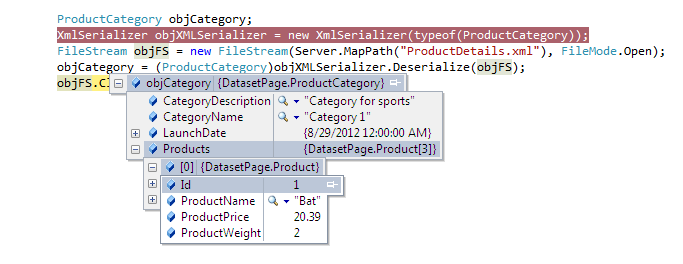
In this example we took XML serialized file "ProductDetails.xml" and deserialize this into object with populating data back.
You can see in the output image that "ProductCategory" object fill from the "ProductDetails.xml" XML File.

C# Examples :
    [XmlRoot("productCategory")]
    public class ProductCategory
    {
        [XmlElement("categoryName")]
        public string CategoryName;

        [XmlElement("categoryDescription")]
        public string CategoryDescription;
        [XmlElement(ElementName = "launchDate", DataType = "date")]
        public DateTime LaunchDate;
        [XmlArray("products")]
        [XmlArrayItem("product")]
        public Product[] Products;
        public ProductCategory()
        {
            // Default constructor for deserialization.
        }
        public ProductCategory(string categoryName, string categoryDescription, DateTime launchDate)
        {
            this.CategoryName = categoryName;
            this.CategoryDescription = categoryDescription;
            this.LaunchDate = launchDate;
        }
    }
    public class Product
    {
        [XmlElement("productName")]
        public string ProductName;
        [XmlElement("productWeight")]
        public decimal ProductWeight;
        [XmlElement("productPrice")]
        public decimal ProductPrice;
                
        [XmlAttributeAttribute(AttributeName = "id")]
        public int Id;
        public Product()
        {

        }
        public Product(int productId, string productName, decimal productWeight , decimal productPrice)
        {
            this.Id =  productId;
            this.ProductName = productName;
            this.ProductWeight = productWeight;
            this.ProductPrice = productPrice;
            
        }
    }
    protected void Page_Load(object sender, EventArgs e)
    {

        ProductCategory objCategory;
        XmlSerializer objXMLSerializer = new XmlSerializer(typeof(ProductCategory));
        FileStream objFS = new FileStream(Server.MapPath("ProductDetails.xml"), FileMode.Open);
        objCategory = (ProductCategory)objXMLSerializer.Deserialize(objFS);
        objFS.Close();

    }

VB.net Examples :
    <XmlRoot("productCategory")> _
    Public Class ProductCategory
        <XmlElement("categoryName")> _
        Public CategoryName As String

        <XmlElement("categoryDescription")> _
        Public CategoryDescription As String
        <XmlElement(ElementName:="launchDate", DataType:="date")> _
        Public LaunchDate As DateTime
        <XmlArray("products")> _
        <XmlArrayItem("product")> _
        Public Products() As Product
        Public Sub New()

        End Sub
        Public Sub New(ByVal categoryName As String, ByVal categoryDescription As String, ByVal launchDate As DateTime)
            Me.CategoryName = categoryName
            Me.CategoryDescription = categoryDescription
            Me.LaunchDate = launchDate
        End Sub
    End Class
    Public Class Product
        <XmlElement("productName")> _
        Public ProductName As String
        <XmlElement("productWeight")> _
        Public ProductWeight As Decimal
        <XmlElement("productPrice")> _
        Public ProductPrice As Decimal

        <XmlAttributeAttribute(AttributeName:="id")> _
        Public Id As Integer
        Public Sub New()

        End Sub
        Public Sub New(ByVal productId As Integer, ByVal productName As String, ByVal productWeight As Decimal, ByVal productPrice As Decimal)
            Me.Id = productId
            Me.ProductName = productName
            Me.ProductWeight = productWeight
            Me.ProductPrice = productPrice

        End Sub
    End Class
  
    Protected Sub Page_Load(ByVal sender As Object, ByVal e As System.EventArgs) Handles Me.Load

        Dim objCategory As New ProductCategory
        Dim objXMLSerializer As New XmlSerializer(Type.GetType(objCategory.ToString()))
        Dim objFS As FileStream = New FileStream(Server.MapPath("ProductDetails.xml"), FileMode.Open)
        objCategory = objXMLSerializer.Deserialize(objFS)
        objFS.Close()
    End Sub

XML File ("ProductDetails.xml") :
<?xml version="1.0"?>
<productCategory xmlns:xsi="http://www.w3.org/2001/XMLSchema-instance" xmlns:xsd="http://www.w3.org/2001/XMLSchema">
  <categoryName>Category 1</categoryName>
  <categoryDescription>Category for sports</categoryDescription>
  <launchDate>2012-08-29</launchDate>
  <products>
    <product id="1">
      <productName>Bat</productName>
      <productWeight>2</productWeight>
      <productPrice>20.39</productPrice>
    </product>
    <product id="2">
      <productName>Ball</productName>
      <productWeight>1</productWeight>
      <productPrice>2.90</productPrice>
    </product>
    <product id="3">
      <productName>Stumps</productName>
      <productWeight>3</productWeight>
      <productPrice>50.70</productPrice>
    </product>
  </products>
</productCategory>

Output : 
(To view original image , click on image)

Click Here to view "XML Serialization of Class Objects with C# Examples and VB.Net Examples". Click Here...

This is very useful .Net Tips.

For Beginning .Net articles. Click Here...

To learn more regarding XML. Click Here...

Note : Give Us your valuable feedback in comments. Give your suggestions in this article so we can update our articles accordingly that.


Wednesday, 29 August 2012

Click Here to Download XMLSerializationAndDeserializationApplication.zip

Note : This application contains both serialize and deserialize exmples. Goto File menu and Download after click on download link.

There is a need where you want objects data into XML format.
You can achieve this using XML Serialization.
Using XML Serialization you can convert custom objects data into XML and XML into custom objects.
We are using "XmlSerializer" class available in "System.Xml.Serialization" namespace.
There is some prerequisite for custom object class that need to know.

  • The classes that are going to serialize must have a default zero-argument constructor. XmlSerializer use this constructor at a time of creating the new object during deserialization process.
  • XmlSerializer serializes only public variables and properties.
  • All class properties must be readable and writable. Because XmlSerializer uses the property to retrieve information and the property to restore the data after deserialization.

To use XML serialization, you must do mark up data objects with attributes that indicate the desired XML mapping. These attributes are available in the System.Xml.Serialization namespace.
  • XmlRoot indicate the name of the root element of the XML file. By default, XmlSerializer will use the name of the class. This attribute apply to the class declaration.  
  • XmlElement indicates the element name that use for a property or public variable. By default, XmlSerializer will use the name of the property or public variable.
  • XmlAttribute indicate that a property or public variable serialized as an attribute.
  • XmlIgnore indicate that a property or public variable should not be serialized in serialization process.
  • XmlEnum indicate that the text that should be used at the time of serializing enumerated values.

Here is example for this.
In this example we serialize object into XML.
We are taking two classes "ProductCategory" and "Product". We create object of this class fill some data and generate xml using XMLSerialization.

C# Examples :
    [XmlRoot("productCategory")]
    public class ProductCategory
    {
        [XmlElement("categoryName")]
        public string CategoryName;

        [XmlElement("categoryDescription")]
        public string CategoryDescription;
        [XmlElement(ElementName = "launchDate", DataType = "date")]
        public DateTime LaunchDate;
        [XmlArray("products")]
        [XmlArrayItem("product")]
        public Product[] Products;
        public ProductCategory()
        {

        }
        public ProductCategory(string categoryName, string categoryDescription, DateTime launchDate)
        {
            this.CategoryName = categoryName;
            this.CategoryDescription = categoryDescription;
            this.LaunchDate = launchDate;
        }
    }
    public class Product
    {
        [XmlElement("productName")]
        public string ProductName;
        [XmlElement("productWeight")]
        public decimal ProductWeight;
        [XmlElement("productPrice")]
        public decimal ProductPrice;
                
        [XmlAttributeAttribute(AttributeName = "id")]
        public int Id;
        public Product()
        {
            // Default constructor for serialization.
        }
        public Product(int productId, string productName, decimal productWeight , decimal productPrice)
        {
            this.Id =  productId;
            this.ProductName = productName;
            this.ProductWeight = productWeight;
            this.ProductPrice = productPrice;
            
        }
    }
    protected void Page_Load(object sender, EventArgs e)
    {

        // Create the product catalog.
        
        ProductCategory objCategory = new ProductCategory("Category 1", "Category for sports", DateTime.Now);
        Product[] lstProducts = new Product[3];
        lstProducts[0] = new Product(1,"Bat", 2, 20.39m);
        lstProducts[1] = new Product(2,"Ball", 1, 2.90m);
        lstProducts[2] = new Product(3,"Stumps", 3, 50.70m);
        objCategory.Products = lstProducts;
        XmlSerializer objXMLSerializer = new XmlSerializer(typeof(ProductCategory));
        FileStream objFS = new FileStream( Server.MapPath( "ProductDetails.xml"), FileMode.Create);
        objXMLSerializer.Serialize(objFS, objCategory);
        objFS.Close();
    }

VB.net Examples :
    <XmlRoot("productCategory")> _
    Public Class ProductCategory
        <XmlElement("categoryName")> _
        Public CategoryName As String

        <XmlElement("categoryDescription")> _
        Public CategoryDescription As String
        <XmlElement(ElementName:="launchDate", DataType:="date")> _
        Public LaunchDate As DateTime
        <XmlArray("products")> _
        <XmlArrayItem("product")> _
        Public Products() As Product
        Public Sub New()

        End Sub
        Public Sub New(ByVal categoryName As String, ByVal categoryDescription As String, ByVal launchDate As DateTime)
            Me.CategoryName = categoryName
            Me.CategoryDescription = categoryDescription
            Me.LaunchDate = launchDate
        End Sub
    End Class
    Public Class Product
        <XmlElement("productName")> _
        Public ProductName As String
        <XmlElement("productWeight")> _
        Public ProductWeight As Decimal
        <XmlElement("productPrice")> _
        Public ProductPrice As Decimal

        <XmlAttributeAttribute(AttributeName:="id")> _
        Public Id As Integer
        Public Sub New()

        End Sub
        Public Sub New(ByVal productId As Integer, ByVal productName As String, ByVal productWeight As Decimal, ByVal productPrice As Decimal)
            Me.Id = productId
            Me.ProductName = productName
            Me.ProductWeight = productWeight
            Me.ProductPrice = productPrice

        End Sub
    End Class


    Protected Sub Page_Load(ByVal sender As Object, ByVal e As System.EventArgs) Handles Me.Load

        Dim objCategory As ProductCategory = New ProductCategory("Category 1", "Category for sports", DateTime.Now)
        Dim lstProducts() As Product = New Product(2) {}
        lstProducts(0) = New Product(1, "Bat", 2, 20.39)
        lstProducts(1) = New Product(2, "Ball", 1, 2.9)
        lstProducts(2) = New Product(3, "Stumps", 3, 50.7)
        objCategory.Products = lstProducts
        Dim objXMLSerializer As XmlSerializer = New XmlSerializer(Type.GetType(objCategory.ToString()))
        Dim objFS As FileStream = New FileStream(Server.MapPath("ProductDetails.xml"), FileMode.Create)
        objXMLSerializer.Serialize(objFS, objCategory)
        objFS.Close()

    End Sub

Output XML File ("ProductDetails.xml") :
<?xml version="1.0"?>
<productCategory xmlns:xsi="http://www.w3.org/2001/XMLSchema-instance" xmlns:xsd="http://www.w3.org/2001/XMLSchema">
  <categoryName>Category 1</categoryName>
  <categoryDescription>Category for sports</categoryDescription>
  <launchDate>2012-08-29</launchDate>
  <products>
    <product id="1">
      <productName>Bat</productName>
      <productWeight>2</productWeight>
      <productPrice>20.39</productPrice>
    </product>
    <product id="2">
      <productName>Ball</productName>
      <productWeight>1</productWeight>
      <productPrice>2.90</productPrice>
    </product>
    <product id="3">
      <productName>Stumps</productName>
      <productWeight>3</productWeight>
      <productPrice>50.70</productPrice>
    </product>
  </products>
</productCategory>

Click Here to View "XML Deserialization with C# Examples and VB.Net Examples". Click Here...

This is very useful .Net Tips.

For Beginning .Net articles. Click Here...

To learn more regarding XML. Click Here...

Note : Give Us your valuable feedback in comments. Give your suggestions in this article so we can update our articles accordingly that.


Thursday, 19 July 2012

You can create a XML File using XMLWriter class.
XMLWriter class available in System.XML namespace.
This will give proper indentation and create Well formed XML File.

Here is example for this.
In this example we create BookList.xml file with different Elements and Attributes.

C# Example :
        XmlWriterSettings objSetting = new XmlWriterSettings();
        objSetting.Indent = true;
        objSetting.NewLineOnAttributes = true;
        
        System.Text.StringBuilder sb = new System.Text.StringBuilder();


        using (XmlWriter objWriter = XmlWriter.Create(sb, objSetting))
        {
            //Note the artificial, but useful, indenting
            objWriter.WriteStartDocument();

            objWriter.WriteStartElement("books");

            ////////Start Book Element///////
            
            objWriter.WriteStartElement("book");

            objWriter.WriteStartAttribute("ISBN");
            objWriter.WriteValue("asp1");
            objWriter.WriteEndAttribute();

            objWriter.WriteStartElement("Title");
            objWriter.WriteValue("ASP.NET");
            objWriter.WriteEndElement();

            objWriter.WriteElementString("ReleaseDate", "11/11/2010");

            objWriter.WriteStartElement("Pages");
            objWriter.WriteValue(200);
            objWriter.WriteEndElement(); //price

            objWriter.WriteEndElement(); //book
            ////////End Book Element///////


            ////////Another Element

            ////////Start Book Element///////
            
            objWriter.WriteStartElement("book");

            objWriter.WriteStartAttribute("ISBN");
            objWriter.WriteValue("c#2");
            objWriter.WriteEndAttribute();

            objWriter.WriteStartElement("Title");
            objWriter.WriteValue("C#.NET");
            objWriter.WriteEndElement();

            objWriter.WriteElementString("ReleaseDate", "10/11/2010");

            objWriter.WriteStartElement("Pages");
            objWriter.WriteValue(500);
            objWriter.WriteEndElement(); 

            objWriter.WriteEndElement(); //book
            ////////End Book Element///////


            objWriter.WriteEndElement(); //books
            objWriter.WriteEndDocument();
            
        }

        File.WriteAllText(Server.MapPath("BooksList.xml"), sb.ToString());

VB.net Example :
        Dim objSetting As New XmlWriterSettings()
        objSetting.Indent = True
        objSetting.NewLineOnAttributes = True

        Dim sb As New System.Text.StringBuilder()


        Using objWriter As XmlWriter = XmlWriter.Create(sb, objSetting)
            'Note the artificial, but useful, indenting
            objWriter.WriteStartDocument()

            objWriter.WriteStartElement("books")

            ''''Start Book Element

            objWriter.WriteStartElement("book")

            objWriter.WriteStartAttribute("ISBN")
            objWriter.WriteValue("asp1")
            objWriter.WriteEndAttribute()

            objWriter.WriteStartElement("Title")
            objWriter.WriteValue("ASP.NET")
            objWriter.WriteEndElement()

            objWriter.WriteElementString("ReleaseDate", "11/11/2010")

            objWriter.WriteStartElement("Pages")
            objWriter.WriteValue(200)
            objWriter.WriteEndElement()
            objWriter.WriteEndElement() 'book
            ''''End Book Element

            ''''Another Element

            ''''Start Book Element

            objWriter.WriteStartElement("book")

            objWriter.WriteStartAttribute("ISBN")
            objWriter.WriteValue("c#2")
            objWriter.WriteEndAttribute()

            objWriter.WriteStartElement("Title")
            objWriter.WriteValue("C#.NET")
            objWriter.WriteEndElement()

            objWriter.WriteElementString("ReleaseDate", "10/11/2010")

            objWriter.WriteStartElement("Pages")
            objWriter.WriteValue(500)
            objWriter.WriteEndElement()
            objWriter.WriteEndElement() 'book
            ''''End Book Element


            objWriter.WriteEndElement() 'books

            objWriter.WriteEndDocument()
        End Using

        File.WriteAllText(Server.MapPath("BooksList.xml"), sb.ToString())

Output (Generated XML) :

<?xml version="1.0" encoding="utf-16"?>
<books>
  <book
    ISBN="asp1">
    <Title>ASP.NET</Title>
    <ReleaseDate>11/11/2010</ReleaseDate>
    <Pages>200</Pages>
  </book>
  <book
    ISBN="c#2">
    <Title>C#.NET</Title>
    <ReleaseDate>10/11/2010</ReleaseDate>
    <Pages>500</Pages>
  </book>
</books>

Note : Give Us your valuable feedback in comments. Give your suggestions in this article so we can update our articles accordingly that.