Monday, 20 August 2012

Hashing algorithms are one way cryptographic functions that accept plain text of any length and generate a numeric value. These are one-way because it’s almost impossible to get the original plain text from the hash code. Hashing algorithms are useful for encrypt the password.

Use the same hashing algorithm to a specific text always generates the same hash code. This makes hash codes useful for check if two blocks of plain text are the same.
Generating hash codes in the .NET Framework is possbile.

The abstract class "HashAlgorithm" provides a base from which all hashing algorithm implementations.
The .NET Framework has the seven hashing algorithm implementations.
This class is in the System.Security.Cryptography namespace.

Here is list of Algorithms. 

Algorithm Name Class Name Hash Code Size (in Bits)
MD5 MD5CryptoServiceProvider 128
RIPEMD160 or RIPEMD-160    RIPEMD160Managed 160
SHA or SHA1 SHA1CryptoServiceProvider   160
SHA1Managed SHA1Managed 160
SHA256 or SHA-256 SHA256Managed 256
SHA384 or SHA-384 SHA384Managed 384
SHA512 or SHA-512 SHA512Managed 512

Visit this link for C# Examples and VB.net Example on Hashing Algorithm Implementation. Click Here...

Note : Give Us your valuable feedback in comments. Give your suggestions in this article so we can update our articles accordingly that.

Saturday, 18 August 2012

As a .Net Beginners you must know how to make textbox readonly.

You can make textbox read only. Means do not allow type text in textbox and also is there is any text predefined in that you are not able to change that text.
You can do this with the help of "ReadOnly" property. You can set ReadOnly=true to make textbox read only.
By default text box is not readonly.

Here is example for this.
In this example we have one text box and we make that textbox readonly.
You can set this property from aspx side or from Coding side.
In this example we are showing from both side

ASPX Code:
<asp:TextBox runat="server" ID="txtProductName" Text="Keyboard"  ></asp:TextBox>

C# Examples :
txtProductName.ReadOnly = true;

VB.net Examples :
txtProductName.ReadOnly = True

Output : 


You can use Either aspx side or Coding side approach.

This is very useful articles for Beginning .Net .

This type of C# Tips is very useful in day to day programming life.

Note : Give Us your valuable feedback in comments. Give your suggestions in this article so we can update our articles accordingly that.


Friday, 17 August 2012

When error occurred in .Net application Asp.Net page display it's default error page with the source code and line number of the error. This approach is not good it has some issues like.
  1. If source code and the error messages are displayed to a hacker it could damage application.
  2. And this message do not able to understand normal users.
There is a solution for this in ASP.Net. You can make settings in Web.Config file using "<customErrors>" section.

Syntax :
<customErrors defaultRedirect="[url]" mode="[on/off/remote]">
<error statusCode="[statuscode]" redirect="[url]" />
</customErrors>
  • defaultRedirect : Specifies URL to which page should be redirected if an error occurs. This setting is optional.
  • mode : Specifies the status of the custom errors is enabled, disabled, or shown only to remote machines. The values are On, Off, and RemoteOnly. "On" means that the custom errors are enabled. "Off" means that the custom errors are disabled. "RemoteOnly" means that the custom errors are shown only to remote clients. 
  • customErrors : The "<customErrors>" section has multiple <error> sub-elements that are used to define custom errors. Each <error> sub-element can has a statusCode attribute and a URL.

Here is example for this.
In this example we forcefully raise error from code and after error raise page is redirected to our custom "ErrorPage.aspx". In this example we raise error using numeric value divide by zero.
Here you have to add one aspx page into your .net application.
We specify settings in "web.config" file.
You have to put  "<customErrors>" section in  "<system.web>" section.

Web.Config :
<customErrors defaultRedirect="ErrorPage.aspx" mode="On">
</customErrors>

C# Examples :
        int a=1;
        int b = 0;
        a = a / b;

VB.net Examples :
        Dim a As Integer = 1
        Dim b As Integer = 0
        a = a / b
Output :
(To view original image , click on image)

If you do not handle error, error message display on screen. You can see in below screen shot.

.

 (To view original image , click on image)

This is very useful articles for Beginning .Net .

This type of C# Tips is very useful in day to day programming life.

Note : Give Us your valuable feedback in comments. Give your suggestions in this article so we can update our articles accordingly that.


Thursday, 16 August 2012

This error occurred due to cast or convert or assign NULL value cell of data row or data table.

Error Reason :

Here is example for this.
We have datatable. This data table contains value of cusutomers, thsi data table has three columns.
Columns are customer_id, customer_firstname and customer_lastname.
Sometimes customer_lastname column has DBNULL value and we directly assign this value to string variable at that time this error occured.

Something like this.
dtCustomer.rows[0]["customer_lastname "]  has DBNULL value. and we are assigning this value to variable like this.


C# Examples :
string strCustomerLastName = dtCustomer.Rows[0]["customer_lastname "].ToString();

VB.net Examples :
Dim strCustomerLastName As String = dtCustomer.Rows(0)("customer_lastname ").ToString()

At this time this error occured.

Solution :

Before assigning or converting this DBNULL value we have make check for this.
We can make check with "System.DBNull.Value" value. We compare both "cell" and "System.DBNull.Value" value if both are same so we do not assign or convert that value. We simply use default value.

Here is Example for this.


C# Examples :
        string strCustomerLastName=string.Empty;
        if(dtCustomer.Rows[0]["customer_lastname "] != System.DBNull.Value)
        {
            strCustomerLastName = dtCustomer.Rows[0]["customer_lastname "].ToString();
        }

VB.net Examples :
        Dim strCustomerLastName As String = String.Empty
        If (dtCustomer.Rows(0)("customer_lastname ") IsNot System.DBNull.Value) Then
            strCustomerLastName = dtCustomer.Rows(0)("customer_lastname ").ToString()
        End If

This is very useful articles for Beginning .Net .

This type of C# Tips is very useful in day to day programming life.

Note : Give Us your valuable feedback in comments. Give your suggestions in this article so we can update our articles accordingly that.


Thursday, 9 August 2012

You are able to reading event log from .Net application.
We are using "EventLog" class of "System.Diagnostics" namespace.
There are three categories of event log available Application, Security and System.

Here is example for this.
In this example we take one combobox, this combobox contains three values "Application", "Security" and "System". You can select any one category to read event log and display it's result in grid.

ASPX Code : 
        <asp:DropDownList runat="server" ID="cboEventLog">
            <asp:ListItem Text="Application" Value="Application"></asp:ListItem>
            <asp:ListItem Text="Security" Value="Security"></asp:ListItem>
            <asp:ListItem Text="System" Value="System"></asp:ListItem>
        </asp:DropDownList>
        <asp:Button runat="server" ID="btnGetEventLog" Text="Get Event Log" OnClick="btnGetEventLog_Click" />
        <br /><br />
        <asp:GridView ID="gvEventLog" runat="server" AllowPaging="true" PageSize="5" Width="100px" >
        </asp:GridView>

C# Examples :
        EventLog objEL = new EventLog();
        objEL.Source = cboEventLog.SelectedItem.Text;
        gvEventLog.DataSource = objEL.Entries;
        gvEventLog.DataBind();

VB.net Examples :
        Dim objEL As New EventLog()
        objEL.Source = cboEventLog.SelectedItem.Text
        gvEventLog.DataSource = objEL.Entries
        gvEventLog.DataBind()

Output :

(To view original image , click on image)

Here is an example of write or insert event log entry into windows event log. Click Here...

This type of C# Tips is very useful in day to day programming life.

Note : Give Us your valuable feedback in comments. Give your suggestions in this article so we can update our articles accordingly that.

Wednesday, 8 August 2012

Every ASP.NET server includes a number of configuration files, such as the machine.config , web.config file. This file is installed as a default .NET Framework installation. You can find "machine.config" file and and other server-specific configuration files in "C:\Windows\Microsoft.NET\Framework\v4.xxxxxx" folder. They have the default settings for ASP.NET Web applications on the server.

List of the server-wide configuration files :
  • machine.config
  • machine.config.comments
  • machine.config.default
  • web.config
  • web.config.comments
  • web.config.default
  • web_hightrust.config
  • web_hightrust.config.default
  • web_lowtrust.config
  • web_lowtrust.config.default
  • web_mediumtrust.config
  • web_mediumtrust.config.default
  • web_minimaltrust.config
  • web_minimaltrust.config.default

.Net Framework install machine.config , machine.config.default and machine.config.comments files.
The machine.config.default file is a backup of the machine.config file.
If you want to the factory setting of machine.config file, you simply copy the settings from the machine.config.default to the machine.config file.

The machine.config.comments file contains a description for each configuration section and explicit settings for the most commonly used values. machine.config.default and machine.config.comment files are not used by the .NET Framework runtime, they are installed in case you want to revert to default factory settings.

You can find a root - level web.config file within the same CONFIG folder as the machine.config.

By default, ASP.NET Web applications run under a full trust setting. You can see this setting at the <securityPolicy> and <trust> sections in the root - level web.config file.

Note : Let us know if any additional things you know about this topic. We will update our article accordingly that.


Tuesday, 7 August 2012

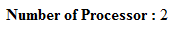
You can get processors count on your machine.
We are using "ProcessorCount" property of "System.Environment" class.

Here is example for this.
In this example we display Processor count on screen

C# Examples :
Response.Write("<b>Number of Processor :</b> " + Environment.ProcessorCount);

VB.net Examples :
Response.Write("<b>Number of Processor :</b> " & Environment.ProcessorCount)

Output :


This type of C# Tips is very useful in day to day programming life.

Note : Give Us your valuable feedback in comments. Give your suggestions in this article so we can update our articles accordingly that.