Click Here to Download Autocomplete And Fancy Dropdown boxes.zip
Also Download From this Link : Download Autocomplete And Fancy Dropdown boxes.zip
There is a situation where you have a large amount of value in dropdown list and you want to make that dropdown
user-friendly. You want
auto search functionality in ASP.Net Dropdownlist control.
You want one textbox inside dropdown list and when user type something in that textbox dropdown list become
searchable and it will display only those records which were matched within textbox without doing any postback.
We can do this using Javascript and
JQuery. We are using one JQuery plug-in for that. Plug-in name is
"Chosen".
Here is example for ASP.NET Autocomplete DropDown.
In this example we take
ASP.Net dropdown control and fill countries name into that, after that when user click on that combobox by default dropdown list is open and on first position you can see the textbox when you type in textbox dropdown list control become search-able and this list if automatically filter.
You can also get selected value in server side code using
"SelectedValue" property of comobox. In this example when user click on
"GetSelected" button at that time server side button click event called and display selected value in label. You can see that in below output screens.
ASPX Code :
<%@ Page Language="C#" AutoEventWireup="true" CodeFile="FnacyDropdownlist.aspx.cs" Inherits="FnacyDropdownlist" %>

<!DOCTYPE html>

<html xmlns="http://www.w3.org/1999/xhtml">
<head>
    <style>
        a img{border: none;}
        ol li{list-style: decimal outside;}
        div#container{width: 780px;margin: 0 auto;padding: 1em 0;}
        div.side-by-side{width: 100%;margin-bottom: 1em;}
        div.side-by-side > div{float: left;width: 50%;}
        div.side-by-side > div > em{margin-bottom: 10px;display: block;}
        .clearfix:after{content: "\0020";display: block;height: 0;clear: both;overflow: hidden;visibility: hidden;}

    </style>
    <link rel="stylesheet" href="Style/chosen.css" />
</head>
<body>
    <form runat="server" id="form1">
        <div id="container">
            <h2>Selected Value :
                <asp:Label runat="server" ID="lblSelectedValue" Style="color: red"></asp:Label></h2>
            <div class="side-by-side clearfix">

                <div>

                    <asp:DropDownList data-placeholder="Choose a Country..." runat="server" ID="cboCountry" class="chzn-select" Style="width: 350px;">
                        <asp:ListItem Text="" Value=""></asp:ListItem>
                        <asp:ListItem Text="United States" Value="United States"></asp:ListItem>
                        <asp:ListItem Text="United Kingdom" Value="United Kingdom"></asp:ListItem>
                        <asp:ListItem Text="Albania" Value="Albania"></asp:ListItem>
                        <asp:ListItem Text="Algeria" Value="Algeria"></asp:ListItem>
                        <asp:ListItem Text="Angola" Value="Angola"></asp:ListItem>
                        <asp:ListItem Text="Bahamas" Value="Bahamas">Bahamas</asp:ListItem>
                        <asp:ListItem Text="Bahrain" Value="Bahrain"></asp:ListItem>
                        <asp:ListItem Text="Brazil" Value="Brazil"></asp:ListItem>
                        <asp:ListItem Text="Czech Republic" Value="Czech Republic"></asp:ListItem>
                        <asp:ListItem Text="Denmark" Value="Denmark"></asp:ListItem>
                        <asp:ListItem Text="Djibouti" Value="Djibouti"></asp:ListItem>
                        <asp:ListItem Text="Dominica" Value="Dominica"></asp:ListItem>
                        <asp:ListItem Text="Dominican Republic" Value="Dominican Republic"></asp:ListItem>

                    </asp:DropDownList><asp:Button runat="server" ID="btnSelect" Text="Get Selected" OnClick="btnSelect_Click" />

                </div>
            </div>

        </div>
        <script src="Scripts/jquery.min.js" type="text/javascript"></script>
        <script src="Scripts/chosen.jquery.js" type="text/javascript"></script>
        <script type="text/javascript"> $(".chzn-select").chosen(); $(".chzn-select-deselect").chosen({ allow_single_deselect: true }); </script>
    </form>
</body>
</html>
C#. Net Example :
    protected void btnSelect_Click(object sender, EventArgs e)
    {
        lblSelectedValue.Text = cboCountry.SelectedValue;

    }
Output (Default Screen) :
 |
| (To view original image , click on image) |
Output (Auto search screen) :
 |
| (To view original image , click on image) |
Output (Selected Value Screen) :
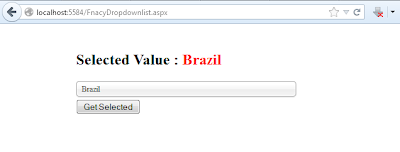 |
| (To view original image , click on image) |
You can download complete running source code from above link.
Note : There are other lots of functionality of this "Chosen" plug-in. We will post those functionality in next
blogs.


